How to Reduce No-Shows With Automated Appointment Reminders
A practical reminder workflow for local service teams that need fewer no-shows, fewer late cancellations, cleaner rescheduling, and better office visibility.
Why no-shows happen in local service businesses
Most no-shows are not intentional. A homeowner books a repair window while juggling work, school pickup, pets, tenants, or another contractor. By the time the appointment arrives, the service call may be buried under texts, email, and a busy calendar.
For home-service teams, the cost is still real. A missed appointment can leave a technician driving to a locked gate, an empty driveway, or a customer who forgot the arrival window. That creates schedule gaps, late-day scrambling, and fewer completed jobs from the same labor hours.
Automated appointment reminders for home services work best when they do more than say, 'We are coming tomorrow.' A useful workflow confirms the appointment, gives the customer a clear next step, opens a simple reschedule path, and gives the office team visibility into who has not responded.
Reminder timing that protects the schedule
Start with a cadence that matches how customers actually prepare for service. For most repair, maintenance, inspection, and estimate appointments, a strong baseline is an immediate booking confirmation, a 48-hour reminder, a 24-hour confirmation request, and a day-of arrival-window message.
The immediate confirmation should include the service type, date, time window, property address, and any preparation details. A pest control company might remind the customer to secure pets. A pool service company might ask for gate access. An HVAC company might ask the customer to clear the equipment area.
The 48-hour reminder protects the schedule before it is too late to recover the slot. If the customer needs to move the appointment, the office still has time to offer the opening to another customer. The 24-hour reminder should ask for an explicit confirmation, such as replying C to confirm or using a confirmation button. The day-of message should be short and operational: arrival window, technician name if available, and any access instruction reminder.
Internal reminders matter too. If a customer has not confirmed by a defined cutoff, the system should create an office task before dispatch starts. For example: 'Call unconfirmed appointments for tomorrow by 3 p.m.' That task keeps automation connected to the people who can protect the route.
Confirmation and reschedule workflows
The confirmation flow should be simple enough for a busy customer to complete in seconds. Ask for one action at a time: confirm, reschedule, or contact the office. Avoid long messages that mix appointment details, review requests, membership offers, and policy language in the same reminder.
A practical confirmation workflow might mark the job as confirmed when the customer replies yes, taps a confirmation link, or answers the office call. If the customer asks to reschedule, the workflow should route them to available booking options or create an office task with the requested time window. The important part is that the appointment does not sit in limbo.
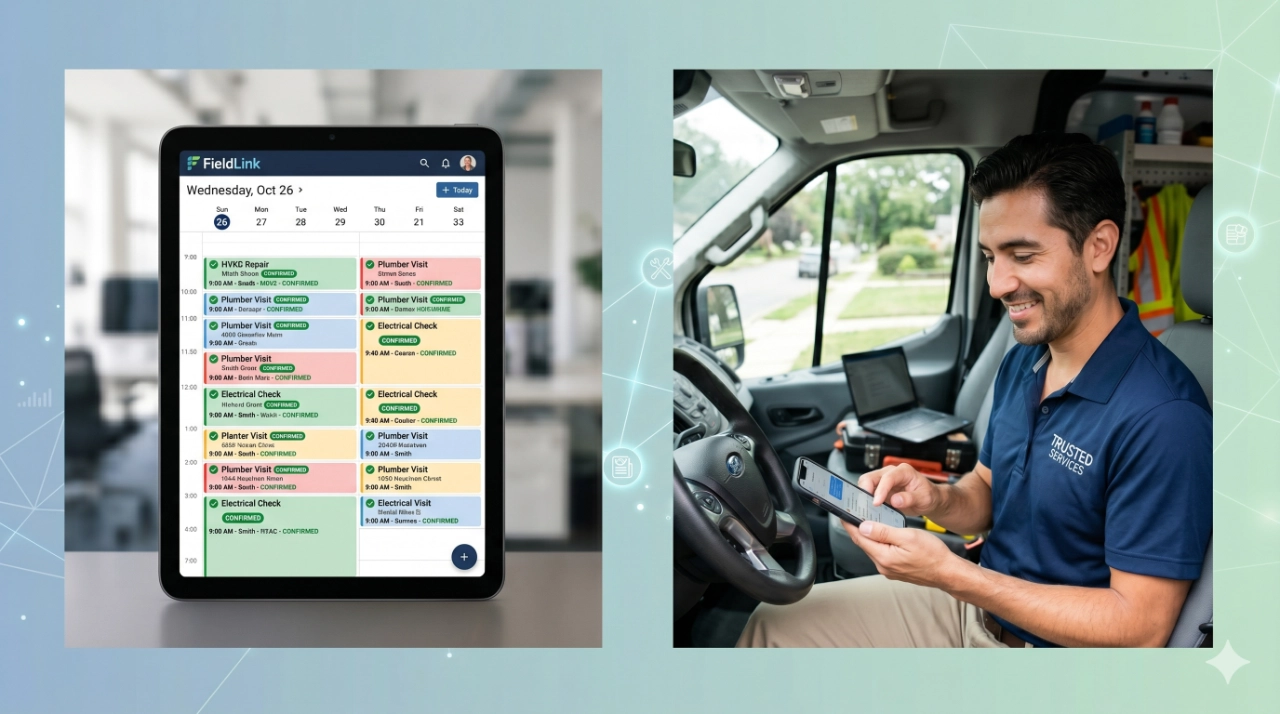
Field-service teams also need visibility. Dispatch should be able to scan tomorrow's schedule and see confirmed, unconfirmed, reschedule requested, access issue, and office follow-up needed. A reminder system that sends texts but does not update the team still leaves the schedule exposed.
Use concrete rules. If an estimate appointment is unconfirmed by noon the day before, call once and send a final text. If a maintenance visit has a gate-code issue, assign it to the office before the route is locked. If the customer requests a new time, remove the job from the route only after the team has offered or confirmed the replacement slot.
What not to automate
Do not automate judgment-heavy conversations. A frustrated customer, a warranty dispute, a safety concern, or a job with unusual access instructions should move to a person quickly. Automation should identify the need for human follow-up, not pretend every appointment can be handled with a template.
Do not over-message customers. More reminders are not always better. If the appointment was booked yesterday, the customer may not need a 48-hour reminder. If they already confirmed, avoid sending repeated confirmation requests. Use status changes to suppress messages that no longer make sense.
Do not hide cancellation or reschedule requests inside a generic inbox. If the message says 'reply to reschedule,' the office needs a reliable way to see that reply and act on it. Otherwise, the automation creates frustration instead of protecting the calendar.
Do not send internal reminders without an owner. A task that says 'follow up' is weak. A task that says 'Dispatcher: call tomorrow's unconfirmed estimates by 3 p.m. and update job status' is actionable.
Metrics: confirmations, no-shows, cancellations, and recovered appointments
Measure the workflow by schedule outcomes, not by the number of reminders sent. Start with four metrics: confirmation rate, no-show rate, late-cancellation rate, and recovered appointments. Recovered appointments are slots saved because the customer rescheduled early enough for the team to refill the opening or reroute the day.
Track response patterns by reminder step. If many customers confirm at 48 hours, the workflow is protecting capacity early. If most reschedule requests arrive after the day-of message, the earlier reminders may need clearer wording or a better reschedule option.
Track internal task completion as well. If unconfirmed appointment tasks are created but not completed, the automation is surfacing risk without closing the loop. That is useful information. The fix may be a clearer owner, a better deadline, or a dispatcher view that makes at-risk appointments easier to scan.
For Phoenix and Buckeye-area service businesses, even a small reduction in no-shows can matter during busy weeks. The goal is not a perfect calendar. The goal is a schedule where customers know what is happening, the office sees risk early, and technicians spend less time driving to appointments that were never going to happen.
A starter workflow for field-service teams
A simple first build can be enough: send an immediate confirmation at booking, send a 48-hour reminder with a reschedule option, request confirmation 24 hours before service, send a day-of arrival-window message, and create an office task for every unconfirmed or reschedule-requested appointment.
Write the first version for one appointment type before expanding. Maintenance visits, estimates, and urgent repairs often need different wording and timing. Once the team can see confirmations, reschedules, no-shows, cancellations, and recovered appointments for one workflow, it becomes easier to improve the next one.
The best reminder system feels ordinary to the customer and obvious to the office. The customer knows when the service team is coming and how to make a change. The office knows which appointments are confirmed, which ones need attention, and which schedule gaps can still be recovered.
RESOURCES
Use reminders to keep maintenance plans, seasonal tune-ups, and repeat service windows on schedule.
Connect reminder workflows with faster lead response, routing, and booking follow-up.
See how one-time jobs can turn into repeat visits, maintenance reminders, reviews, and steadier revenue.
Map the first appointment reminder workflow Buckeye GMB should help your service team automate.
Turn appointment reminders into a cleaner service calendar.
Buckeye GMB helps Phoenix and Buckeye-area service companies build practical reminder, confirmation, reschedule, and follow-up workflows that protect booked appointments without adding office busywork.
Plan Your Reminder Workflow